Disclosure: Kamrui provided this product free of charge for review. All opinions in this review are my own.
I love the thought of Mini PC’s. They can be great boxes to use as home servers, media centers, or emulation boxes. I have been using used HP mini PC’s as my way to run my home server for years! When Kamrui reached out to me to cover their H1 Hyper Mini PC, I was excited to see how it would handle being a mini emulation box. With specs that put it roughly on par with the Steam Deck and Z1 Extreme ROG Ally in GPU and CPU performance, respectively, I was pretty excited to dive into testing. After some initial setup woes, the H1 has been a fairly solid emulation and gaming device, but is it worth the investment?
What’s In The Box

The Kamrui Mini PC comes in a plain generic white box that says Mini PC on it with the Kamrui and Hyper Series branding. The back outlines the specs of your included mini PC. Opening the box, you will find the Kamrui H1 Hyper Mini PC, Power Cable, VESA mounting kit, and a User Manual.
Aesthetics And Build Quality

The H1 Mini PC is wonderfully compact at roughly 5 inches wide, 5 inches long, and 2 inches tall. It is housed in a black plastic shell that feels decently strong. The top is split from the base with a cool gold trim inside. While aesthetically pleasing, I had almost hoped this was part of the heatsink design. The front is nice and minimal with a power button, headset jack, two USB-A ports, and a USB-C port. The back is loaded with four USB-A ports, a 2.5Gb Ethernet port, a power port, and an HDMI and DisplayPort for video output. Both sides and the back feature tons of ventilation for the PC. Overall, it is pleasing to look at, lightweight, and feels sturdy in the hands.
Specs
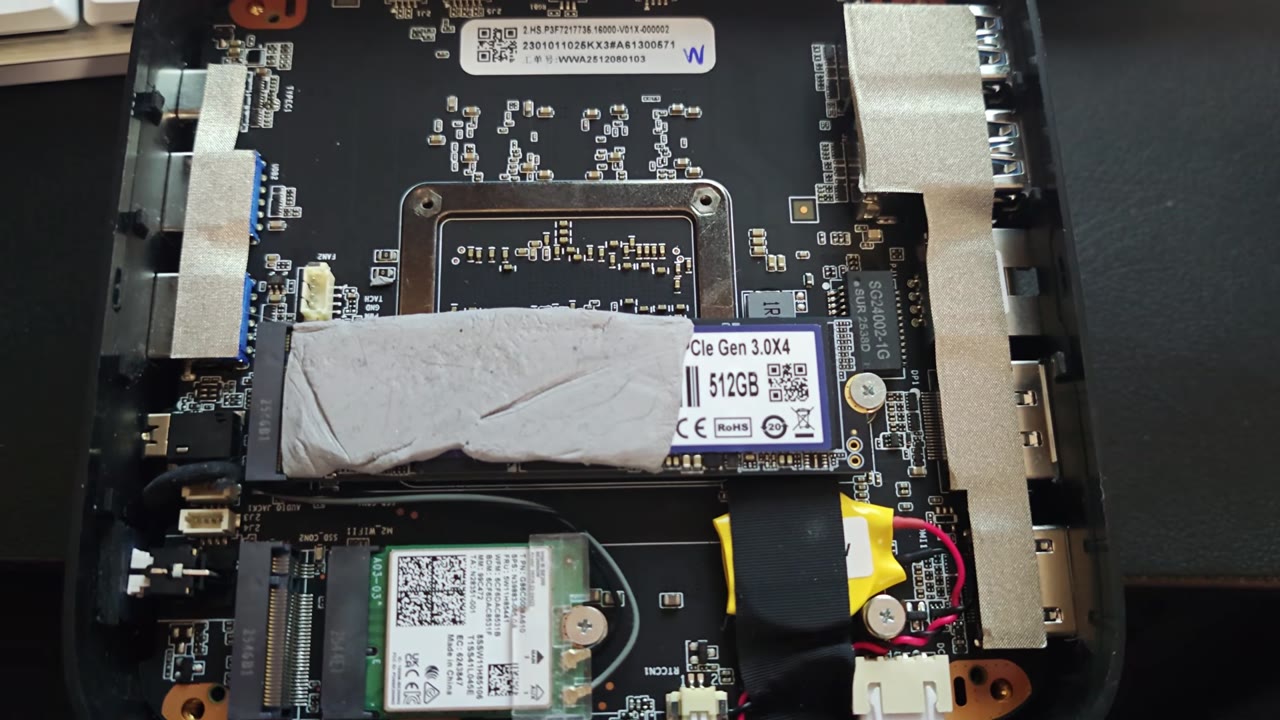
The H1 comes in several varieties. For this review, I was sent a model with 16GB of LPDDR5 RAM clocked at 5500Mt/s and a 512GB PCIE 3.0 NVME SSD. A second NVMe port is available, with both supporting drives up to 4TB. The included drive can hit over 3000 MBs for reads and 800 MBs for writes. Unfortunately, no endurance ratings for this no-name drive are available. Other configurations for 24GB of RAM or 1 TB of storage are also available. The CPU is the Ryzen 7 7735HS, which has a base clock speed of 3.20 GHz and a max boost frequency of 4.75GHz. The Radeon 680M GPU includes 12CUs at 2200MHz. The included USB ports provide 5 Gbps bandwidth for the back ports, while the front ports are 10 Gbps, with the USB-C port providing video output and power delivery. With the HDMI 2.0 and DisplayPort 1.4 outputs, the H1 is capable of driving three monitors at resolutions up to 4K60. A built-in Wi-Fi 6 card is included, which also supports Bluetooth 5.2. A copy of Windows 11 also comes preinstalled out of the box for you to get right to it once unboxed and hooked up.
Setup

As I mentioned earlier, setup is where my experience with the H1 took an initial nosedive. Getting Windows up and running was no issue, but shortly after hitting the Desktop, the H1 ran into severe thermal throttling. No changes in Windows or BIOS settings would get the fan to kick in at a higher speed to offset the heat of the CPU. Something here is messed up, and I really didn’t want to deal with an RMA. Opening the PC, I was able to cut the PWM fan line to kick the fan into permanent full-speed operation. This concerns me, and the frequent returns stated by Amazon tell me it maybe isn’t a rare unlucky flaw with just my product. If this happens to you, request an RMA. I just don’t care enough to bother since it works now. I will say, even at full blast, the fan isn’t terribly loud, and at the distance I typically sit, and with my speakers on, I never hear it at all, and it does a decent job at keeping temps in check now, with the CPU maintaining a good 3.4 to 4.2 GHz on average under heavy load with the iGPU enabled. With the fan issue solved, the rest of the H1 experience has been solid.
Productivity/Media/Server

The H1, even with 16GB of RAM, is a modestly specced device, even if what’s under the hood is from 2023. The CPU provides enough power to handle everyday productivity tasks like web browsing, word processing, and spreadsheets. It is even able to provide a decent experience with light video work, though I wouldn’t try to use it for 4K workloads. Streaming should also be feasible, though I would use a capture card with external devices so you won’t have to worry about RAM limitations if you have a lower-spec model like this.
Using the H1 as a media device also works well for the way I have my home streaming set up. I use Kodi as I store original Blu-ray and DVD iso’s in my file share. This means there is no need for transcoding, and once I had Java installed, I get the full original experience of using my discs. Streaming from Netflix or Amazon also works without issue. The wi-fi 6 card can give me great speeds, with downloads coming in at 1100-1300 Mbps. Uploads typically land between 700-950 Mbps.
With the included 2.5Gbps Ethernet port, the H1 can potentially make for an excellent server to host your files and media. I didn’t use it for this purpose as I already have a more than capable setup. It will get the job done, but personally, buying a used business PC makes more sense for that.
Gaming/Emulation

Finally diving into games is where my second issue with the H1 popped up. Despite knowing exactly how this device should have behaved, I was not able to get it to perform well out of the box. Easy emulation tasks struggled, and GameCube and PS2 could not be pushed with settings that should have been ok. Diving back into the BIOS, you have to explore the AMD settings menu to uncover the different GPU operating modes. Out of the box, my settings only allotted 512MB to the GPU, fine for productivity tasks but a hindrance for gaming. Selecting the gaming configuration gives you 2GB of dedicated memory, so the better option is to set your own memory limit, which can get you a nice 4 or 8 GB configuration. It is also worth noting that you can increase the RAM speed in these menus to its maximum supported 6400MT/s!
Now the emulation performance is exactly what I expected out of this small PC. Rogue Squadron II has negligible frame drops at 1080p, providing an excellent playing experience in even the most demanding levels. It is worth noting that using HD Texture packs can cause slight performance drops but should be decent if you stick to 1080P. PS2 emulation, however, gave me trouble on anything besides native resolution. It shouldn’t be problematic, but throughout testing, I could not get it to work correctly. Utilizing built-in shaders for PCSX2 is my preferred visual look anyway, so the experience was still just fine overall for me. Unfortunately, you will experience drops in more demanding Original Xbox titles. N64, PS1, and Dreamcast are great. Cemu is great. Even some lighter PS3, Xbox 360, and Switch stuff works. For RetroArch, you can apply several shader effects without tanking performance.
For modern gaming, you are far more limited by the 680M. I have been able to play new releases ok but you have to go in expecting to have the lowest settings and lower resolutions. Halo Campaign evolved is able to run respectably enough at 1080p with low settings, with only a few noticeable dips below 30FPS. Metal Gear Solid Delta can hit 45FPS at medium settings at 720P. Older games and esports titles are certainly where it shines. Thankfully, older games are what I am into! Basically, anything that is Steam Deck verified should perform as well as on Valve’s handheld here. Storage can also be a concern with only the initial 512GB SSD at your disposal. Thankfully, the H1 has worked great with my cartridge and disc projects.
If you want extra GPU power, the H1 can make use of EGPU solutions like Oculink using an M.2 to Oculink adapter. As I experimented with this type of setup, I found the M.2 slot occupied by the SSD to provide a more stable connection. Unfortunately, I could not get my RTX 3050 or RTX 5050 to work on the dock I picked up to test with. My old GTX 1080 works flawlessly, however, and even with this ancient card, the performance difference is quite noticeable. I can crank GameCube and PS2 up to 4K without noticeable drops; Xbox works better, and modern games work well with higher settings than the 680M can provide. I am honestly quite shocked at how well it can still perform as a dedicated 1080P card! Being able to disable the 680M for better CPU temps is also a plus, as long as you don’t need to access the BIOS Settings. Obviously, this solution looks like quite the hack job, but if you never plan to take it anywhere, it is feasible. Though, with the extra money you would be investing in such a setup, you are better off getting something more powerful out of the gate.
What It Could Have Done Better

Now, when it comes to my complaints with the H1, it is obviously the fact that the thing wanted to bake itself until I took matters into my own hands. Because of this, I can’t in good conscience ever actually recommend the H1 to others. Yes, I have just talked about how good it is at these various tasks, but the QA issues need to be taken seriously. The BIOS needing to be deep-dived to find proper settings for the GPU and RAM is also not plug-and-play friendly, which can mess up those less experienced with PC’s. In my opinion, these settings need to be front and center on this type of device. It is also unfortunate that these new H1 builds use soldered RAM. With the RAMpocalypse in full swing, I can’t fault Kamrui for going this route to save costs. If you do decide to get an H1, be sure to have your RAM amount decided before diving in, since there are no upgrades.
Verdict

The Kamrui H1 Hyper Mini PC performs exactly as its specs suggest, making it a nice compact emulation and older gaming box. Unfortunately, I have concerns about the QA process, as the unit I was sent required modifying the fan to keep it from killing itself. Getting an optimal configuration will also take some know-how from users; otherwise, you will be leaving a ton of performance on the table. It can be a good device for basic workloads and light gaming, but I find it hard to recommend at its $440 asking price. I also can’t recommend it based on the potential QA issues. Amazon won’t even let me make affiliate links for this one based on its frequent returns. Plus, saving just a bit more can get you something a bit more capable. Even a used Z1 Extreme ROG Ally will give you more performance, and it has the bonus of being usable on a screen or in handheld mode.